

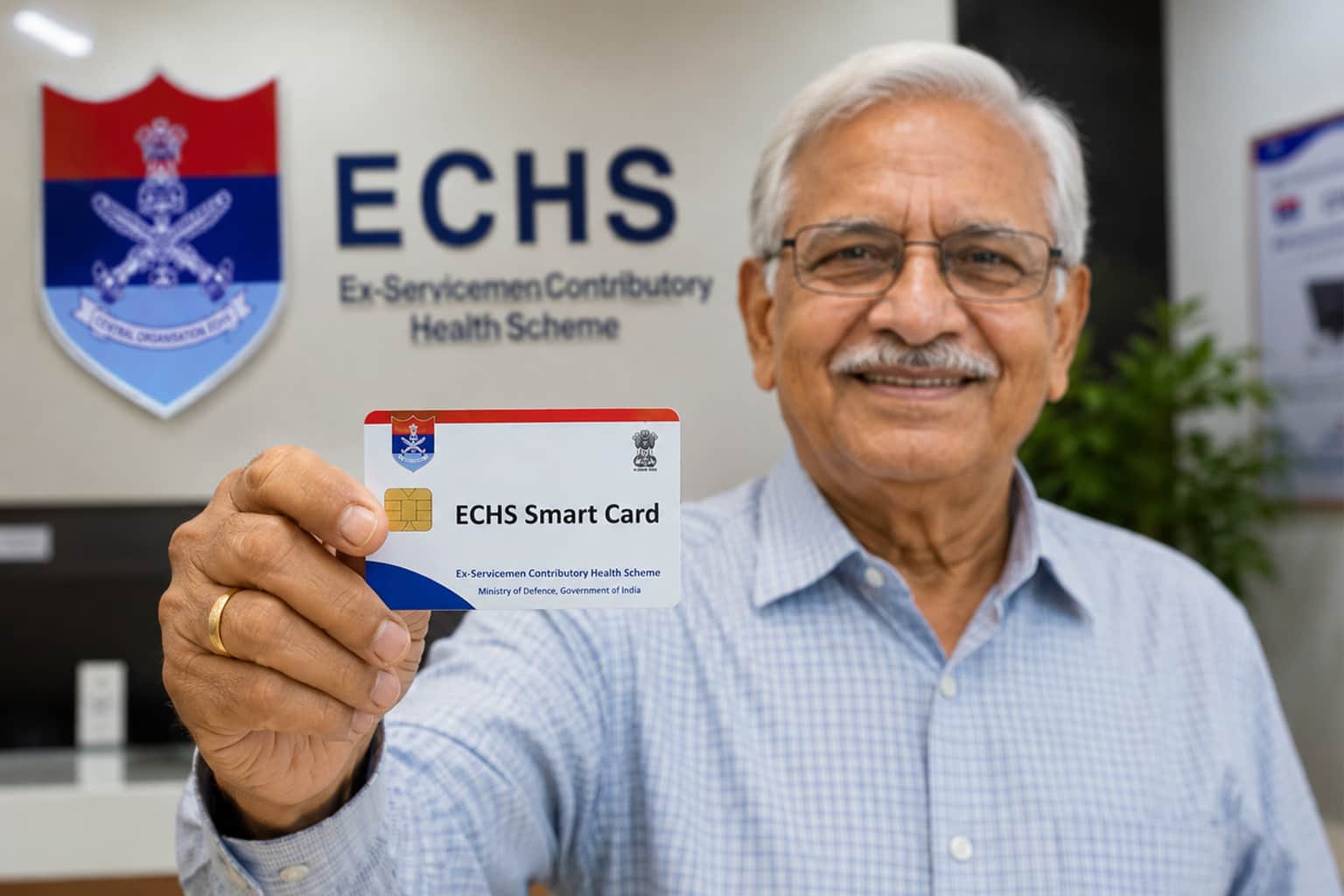
For many ECHS beneficiaries, the problem is not always treatment.
Sometimes, the problem begins before that — at the login page.
A forgotten password, old email ID, wrong mobile number, OTP not received, or confusion about the 64KB smart-card application portal can become a real difficulty for ex-servicemen, primary beneficiaries and families.
That is why the latest ECHS password-reset policy is important.
ECHS has issued an official procedure for beneficiaries who have forgotten or lost login credentials for the Online 64KB ECHS Smart Card Application portal.
This is not just a technical update.
For many senior veterans, it is a practical welfare issue.
What is the latest ECHS smart card update?
The official ECHS policy page shows two important smart-card related updates.
One is “Request for Forget Password for Online 64KB ECHS Smart Card Application”, dated 10 June 2026.
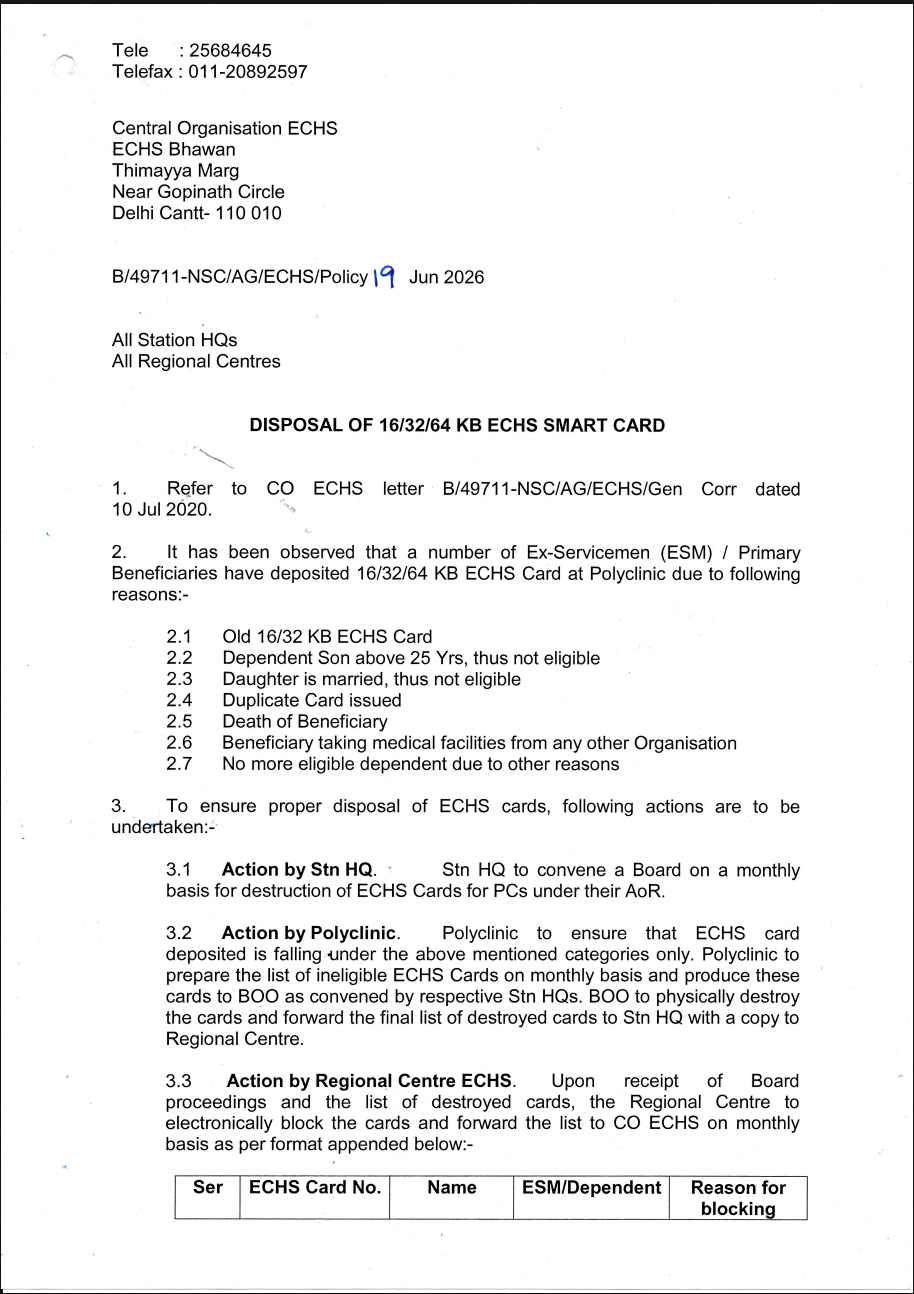
Another is “Disposal of 16/32 and 64 KB Smart Cards”, dated 19 June 2026.
The forgotten-password policy is especially useful because many ESM and primary beneficiaries were forwarding requests for password reset after losing or forgetting login credentials.
The policy now gives a clear procedure to reset the password through official routes.
Why this matters for ECHS beneficiaries?
The ECHS 64KB smart-card portal is used for online smart-card application and related login-based work.
If the password is forgotten, the beneficiary may not be able to check application details, make corrections, track status or handle smart-card related steps.
This becomes more difficult for senior citizens because many beneficiaries depend on family members, cyber cafés or local helpers for online access.
The official procedure helps reduce confusion and prevents beneficiaries from depending on unofficial agents or random phone numbers.
The most important message is simple:
Use only the official ECHS portal and official support contacts.
Official ECHS portal for 64KB smart card
The official portal for the online 64KB ECHS smart-card application is:
https://echs.sourceinfosys.com/
Beneficiaries should use this portal for login-related action.
The forgot-password process mentioned in the ECHS policy is connected with this portal.
This should not be confused with a general email password, mobile password or bank password.
It is specifically about the ECHS 64KB smart-card application login.
The first method given in the policy is password reset through the registered email ID.
The beneficiary has to go to the ECHS online smart-card portal and click on:
“Already Registered. Click to Login”
After that, the beneficiary has to enter the registered mobile number and click on:
“Forgot Password”
Then the registered email ID of the ESM or primary beneficiary has to be entered for OTP generation.
The OTP is sent to the registered email ID.
ECHS has also advised beneficiaries to check the Spam or Junk folder if the OTP is not visible in the inbox.
After receiving the OTP, the beneficiary can enter the OTP and reset the password.
This means the registered email ID is very important.
If the email ID is old, inaccessible or wrongly entered, password recovery can become difficult.
Second option: Reset through security question
The second method is through security questions.
The beneficiary has to go to the same login section, enter the registered mobile number, click on Forgot Password, and then select the option:
“Using Security Question”
After answering the security question correctly, the password can be reset.
This method can help beneficiaries who remember the security answer but are unable to use OTP.
However, if the beneficiary does not remember the security question answer, then the third route becomes important.
Third option: Email route if OTP or security answer fails
The ECHS policy also gives a route for cases where the OTP is not received or the beneficiary does not know the answer to the security question.
In such cases, the ESM or primary beneficiary has to send an email from the registered email ID with the subject:
FORGET PASSWORD
The email should include:
service number,
or registered mobile number.
The request has to be sent to CO ECHS or the respective ECHS Regional Centre as per the policy.
If the ESM or primary beneficiary does not have a registered email ID, then a copy of the PPO is also required for verification.
After verification of submitted details, the password will be issued by return mail.
This is an important safeguard because password access should not be given without identity verification.
PPO copy is not required in every case
Many beneficiaries may misunderstand this point.
The policy does not say that PPO copy is required in every password-reset case.
PPO copy is specifically mentioned where the ESM or primary beneficiary does not have a registered email ID.
So the correct understanding is:
If registered email is available and OTP works, reset through OTP.
If security question works, reset through that option.
If OTP/security question fails, use email route.
If registered email ID is not available, PPO copy is required for verification.
This distinction should be kept clear.
Why registered email ID is now very important?
The forgot-password policy also reminds beneficiaries to keep their email IDs updated in the ECHS application.
This is a very important point.
Many ECHS beneficiaries may have used an old email ID at the time of registration. Some may have used the email ID of a cyber café, helper, relative or someone else. Later, when OTP is required, they are unable to access that email.
This creates problems during password reset.
Beneficiaries should therefore ensure that the registered email ID is correct, active and accessible.
A wrong or inaccessible email ID can delay portal access.
Data correction after 64KB card printing
Password reset is not the only issue beneficiaries should understand.
ECHS has also issued instructions related to change in data after the new 64KB ECHS smart card is printed.
The policy says the ESM or primary beneficiary is responsible for filling correct information in the online application.
The Record Office checks and verifies the data. Once the application is verified, there is no human intervention and the card is printed.
This means the beneficiary must carefully check details before submission and after receiving the card.
If wrong data is printed on the card, the beneficiary should login to the ECHS portal and cross-check whether the data filled in the online application is the same as what was printed on the card.
This helps identify whether the mistake was in the application data or printing process.
Green field and Yellow field: Why beneficiaries must be careful?
The ECHS data-change policy mentions two types of fields: Green fields and Yellow fields.
If correction is made in a Green field, no payment is required. After saving the details, the ECHS card may get automatically unblocked. The beneficiary should then approach the parent polyclinic and insert the card in the KIOSK machine for data update.
If correction is made in a Yellow field, payment for printing of the card is required.
This is important because not every correction has the same financial impact.
Beneficiaries should read the official data-change policy carefully before making changes.
Dependent cards may also get blocked in some cases
One of the most important points in the data-change policy is related to dependent cards.
If the ESM or primary beneficiary applies for change in a Yellow field of ESM/Primary Beneficiary details, then all dependent cards may also get blocked and payment for all cards will be required.
This can surprise many families.
A small correction in the primary beneficiary section may affect dependent cards also.
So beneficiaries should not casually change Yellow field data without understanding the consequences.
Before making such changes, it is better to read the official policy or seek guidance from the parent polyclinic, Regional Centre or official ECHS support.
What about disposal of 16/32 and 64 KB smart cards?
The ECHS official policy page lists a policy titled “Disposal of 16/32 and 64 KB Smart Cards” dated 19 June 2026.
This confirms that ECHS has issued an official policy on disposal of old and 64KB smart cards.
However, beneficiaries should not follow any unofficial social-media instruction about destroying, submitting or discarding old cards unless they read the official PDF or receive clear instructions from authorised ECHS channels.
This is important because ECHS smart cards are linked with beneficiary identity and medical entitlement.
Do not dispose of any card casually.
Do not hand over the card to unauthorised persons.
Do not follow forwarded WhatsApp messages unless verified from the official ECHS website or ECHS authority.
Official ECHS support contacts
The ECHS homepage provides official support contacts for portal and card-related problems.
For issues related to filling up the application form, login problems or portal not opening, ECHS lists the support email:
echs[at]sourceinfosys[dot]com
ECHS also provides WhatsApp support numbers:
7703818578 / 7701976194 / 8448086480 / 8448086481
For other issues, ECHS lists the toll-free number:
1800 114 115
For card-related issues, ECHS also lists the email:
echs-card[at]echs[dot]gov[dot]in
Beneficiaries should use official contact details and avoid unofficial agents.
Common mistakes beneficiaries should avoid
Do not assume OTP will come on mobile. The policy says OTP is sent to the registered email ID.
Do not forget to check Spam or Junk folder.
Do not use an email ID that you cannot access later.
Do not send password details to unknown people.
Do not share OTP with anyone.
Do not assume PPO copy is required in every case.
Do not change Yellow field data without understanding payment and dependent-card consequences.
Do not destroy or discard smart cards based only on social media forwards.
Do not use unofficial helpline numbers found online.
Do not delay email update if the registered email ID is wrong or inaccessible.
Step-by-step summary for forgotten password
First, go to the official ECHS 64KB smart-card portal.
Second, click Already Registered. Click to Login.
Third, enter the registered mobile number.
Fourth, click Forgot Password.
Fifth, try OTP through registered email ID.
Sixth, check Spam/Junk folder if OTP is not received.
Seventh, use security-question option if suitable.
Eighth, if both do not work, send email with subject FORGET PASSWORD through the registered email ID along with service number or registered mobile number.
Ninth, if registered email ID is not available, attach PPO copy for verification.
Tenth, wait for verification and password issue by return mail.
Why this update is important for senior veterans?
Many senior ECHS beneficiaries are not comfortable with online login systems.
They may not remember which email ID was used.
They may have changed mobile numbers.
They may depend on children or cyber cafés.
They may not understand why OTP is not coming.
This policy gives them a structured route.
It also tells families that the registered email ID must be maintained carefully.
For ECHS beneficiaries, digital access is now part of welfare access.
A correct email ID, correct mobile number and careful data entry can save a lot of difficulty later.
Final takeaway
The ECHS 64KB smart-card forgot-password policy is a practical update for ex-servicemen, primary beneficiaries and families.
The first reset route is OTP through registered email ID.
The second route is security question.
The third route is email verification through the registered email ID, with service number or registered mobile number. Where registered email ID is not available, PPO copy is required for verification.
Beneficiaries should also remember that email ID and card data must be kept updated.
Wrong data on a 64KB card may require correction through the official portal, and some Yellow field changes can lead to payment and blocking of dependent cards also.
The safest approach is simple:
Use the official portal.
Keep registered email accessible.
Check details carefully.
Use official ECHS contacts.
And never act on unverified social-media instructions related to ECHS smart cards.
Sources:-
ECHS Official Policy Page:
https://www.echs.gov.in/stat_auto_sec
ECHS Forgot Password PDF:
https://www.echs.gov.in/assets/policy/Policy%20on%20Forget%20Password.pdf
ECHS Official Homepage:
https://www.echs.gov.in/
ECHS Online 64KB Smart Card Application Portal:
https://echs.sourceinfosys.com/
ECHS Change in Data After New 64KB Smart Card is Printed PDF:
https://www.echs.gov.in/assets/policy/CHANGE%20IN%20DATA%20AFTER%20NEW%2064KB%20ECHS%20SMART%20CARD%20IS%20PRINTED.pdf

Leave a Reply